Rally Tripmeter

How it works

From the start line to the finish: how to use the tripmeter during a roadbook rally, step by step.

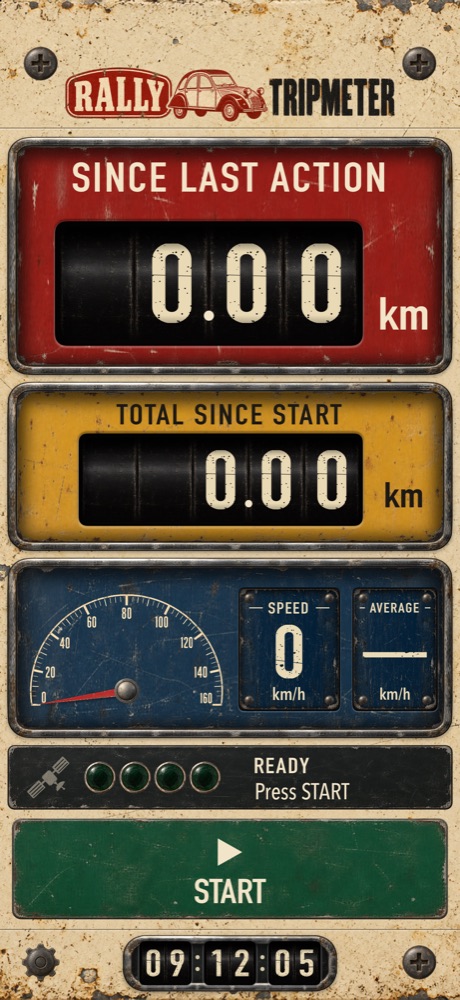
Ready to start: both counters at zero and a green START button
01

Start a ride

Mount your phone, open the app and press START. From that moment the ride is measured and recorded.

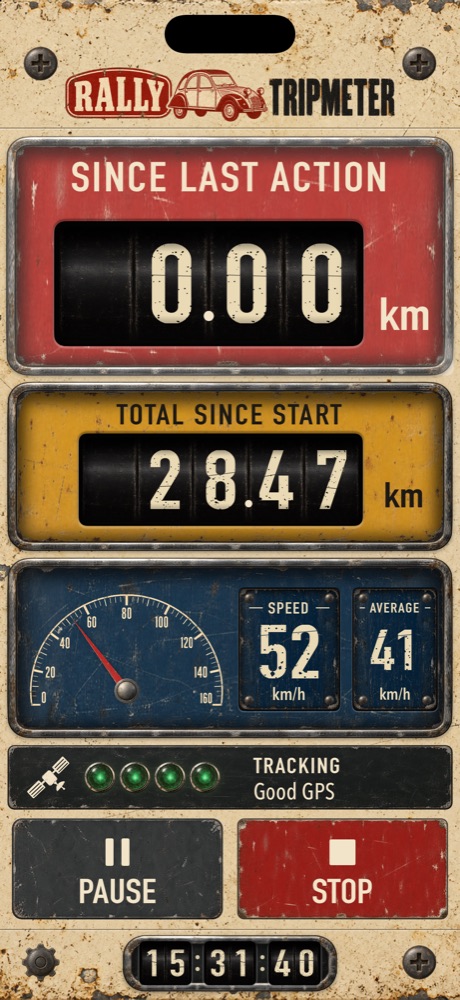
  • The four green lamps show the GPS signal: four is good, none means no usable signal yet.
  • The first time, the app explains why it needs your location. Choose Allow While Using App.
  • The screen stays on while you measure.

TipStart a minute before you leave, so the GPS has a good fix.
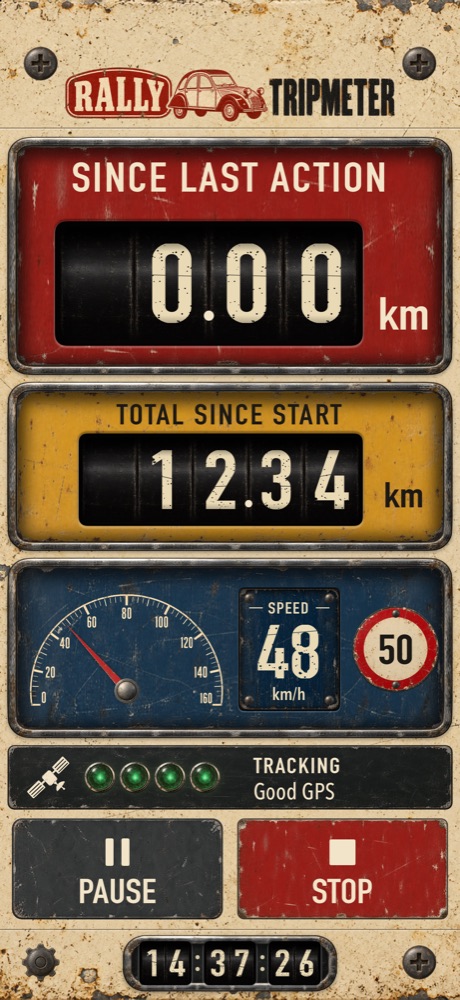
Main screen while driving with counters, speedometer and speed limit sign
02

Read at a glance

Everything you need, readable from the driver's seat:

  • Since last action (red) — the distance since your last roadbook instruction. This is the one you watch most.
  • Total since start (yellow) — the distance of the whole ride.
  • Speed (blue) — your speed on the dial and in figures, with your average, or the legal speed limit sign when you switch it on in Settings.
  • Clock — the time of day with seconds, for time controls in your roadbook.

TipThe speed limit sign uses offline OpenStreetMap data for Belgium. A dash means the app isn't sure — the signs on the road always apply.

Since last action rolled back to zero after a tap
03

Tap anywhere at every action point

Reached the next bolleke or arrow in your roadbook? Tap anywhere on the screen — no need to aim. SINCE LAST ACTION rolls back to 0.00 and the action point is saved on your route.

  • The reset takes no time: the counter starts counting again immediately.
  • Taps only work while a ride is running, so a touch in the holder can't reset by accident.
  • TOTAL SINCE START is never reset by a tap.

TipWorks with gloves and without looking: the whole screen reacts, except the buttons.

Swipe for correction

Swipe for correction

Reverse on

Reverse on

04

Correct and reverse

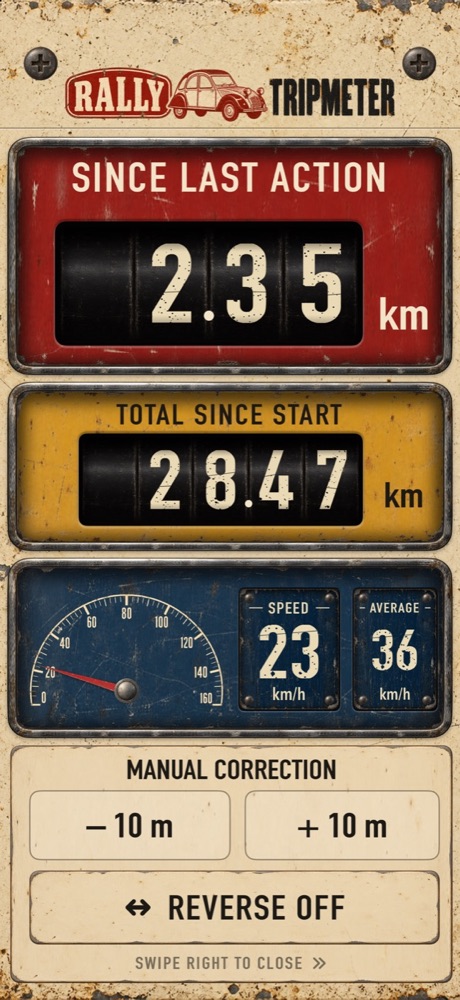
Swipe the status bar and buttons to the left to open MANUAL CORRECTION:

  • – 10 m / + 10 m adjust SINCE LAST ACTION, to match a roadbook distance exactly.
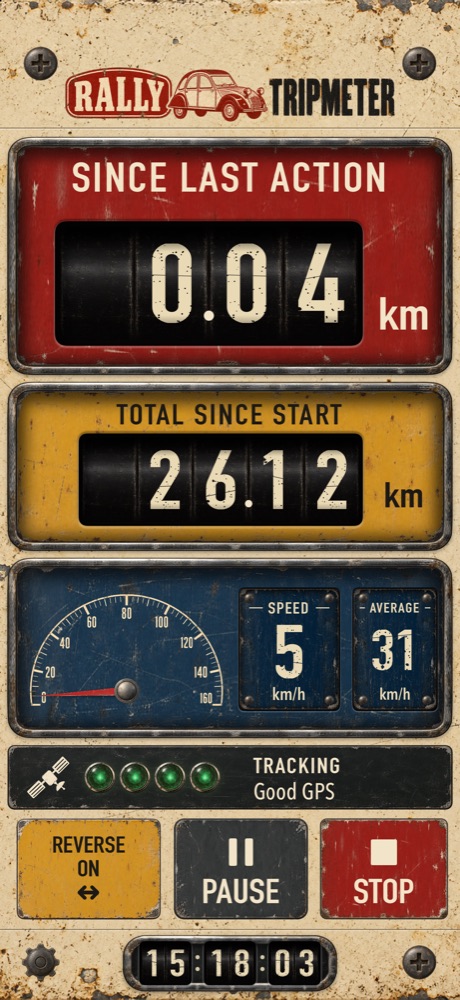
  • REVERSE makes the counters count down while you back up after a wrong turn. A yellow REVERSE ON button appears next to PAUSE; tap it to switch reverse off.

Swipe back to the right to close the panel.

Paused ride with a green RESUME button
05

Pause and resume

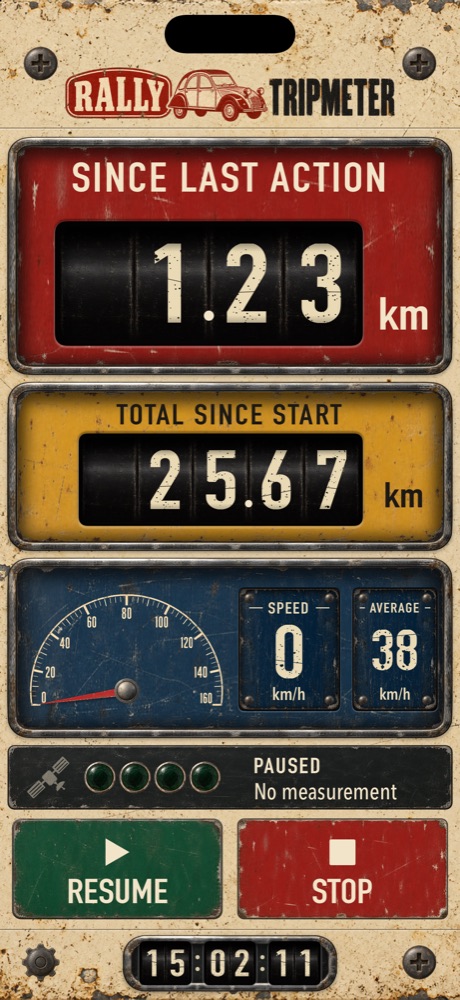
Lunch break or a time control? Press PAUSE. The counters freeze, the GPS switches off to save battery, and nothing is lost.

Press RESUME to continue the same ride. On the map, the pause becomes a gap instead of a straight line.

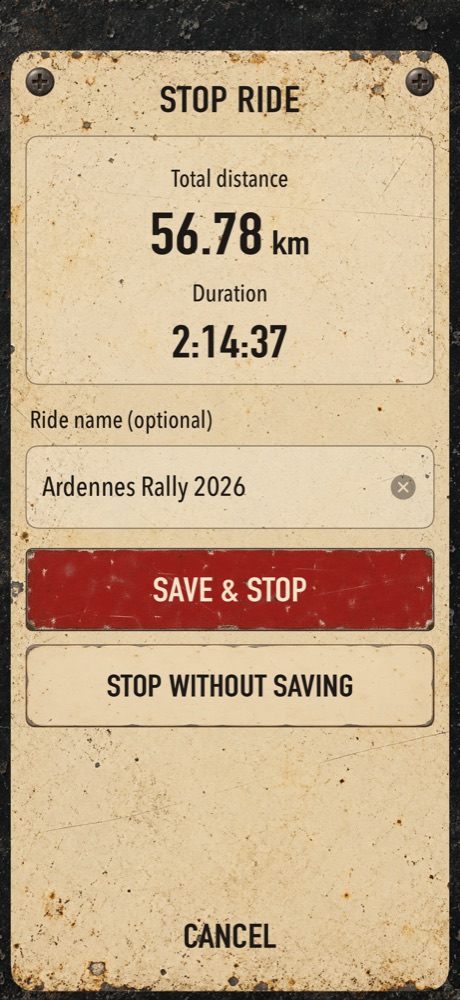
Stop ride screen with distance, duration and ride name
06

Stop and save

At the finish, press STOP. You see the total distance and duration, and you can give the ride a name.

  • SAVE & STOP keeps the ride in your archive.
  • STOP WITHOUT SAVING discards it.

Both counters go back to zero, ready for the next ride.

TipRides shorter than 0.50 km are not kept.

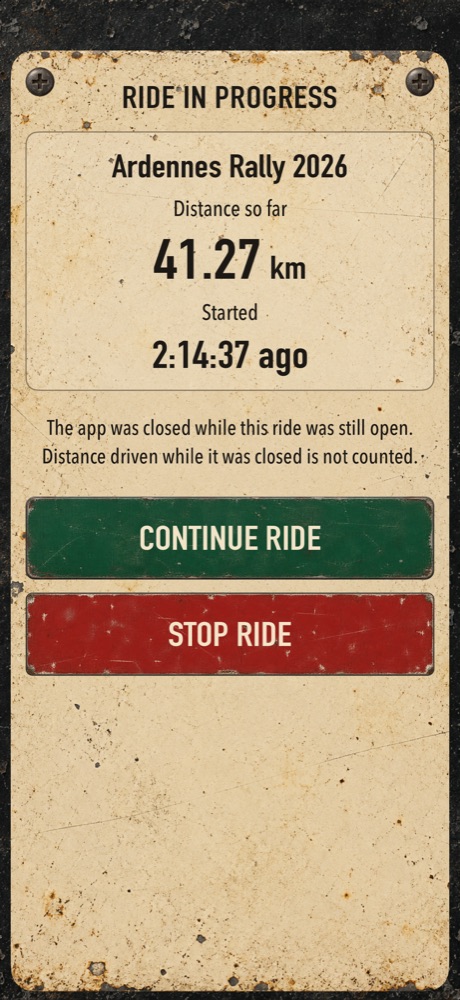
Ride in progress screen after reopening the app
07

Closed by accident? Continue.

The ride is written to your phone while you drive. If the app is closed or your phone restarts, reopen it: it asks whether to CONTINUE RIDE or STOP RIDE.

With the screen locked or another app open, measuring simply continues.

TipDistance driven while the app was completely closed is not counted.

Ride detail

Ride detail

Share as GPX

Share as GPX

08

Your rides, map and GPX

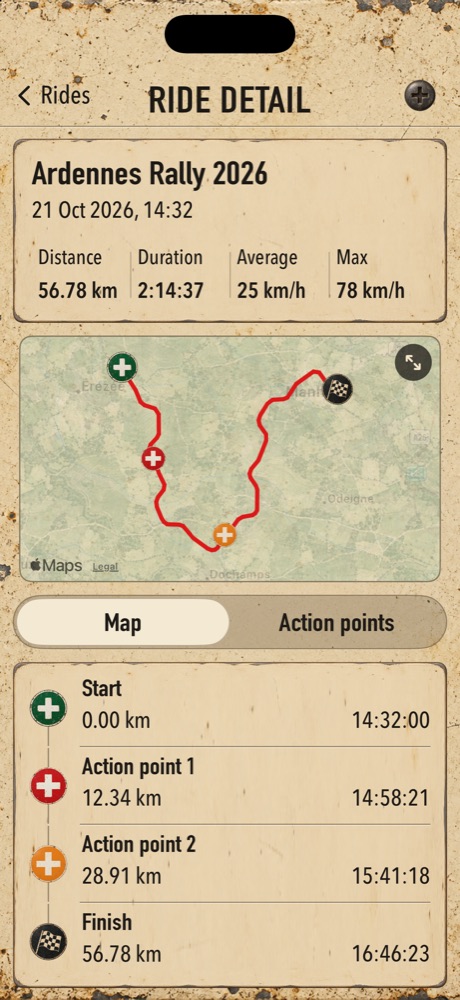
Open Settings › Recorded rides to see every ride. Each ride shows:

  • distance, duration, average and top speed,
  • the route on a map, with start, finish and every action point,
  • the list of action points with their distance and time.

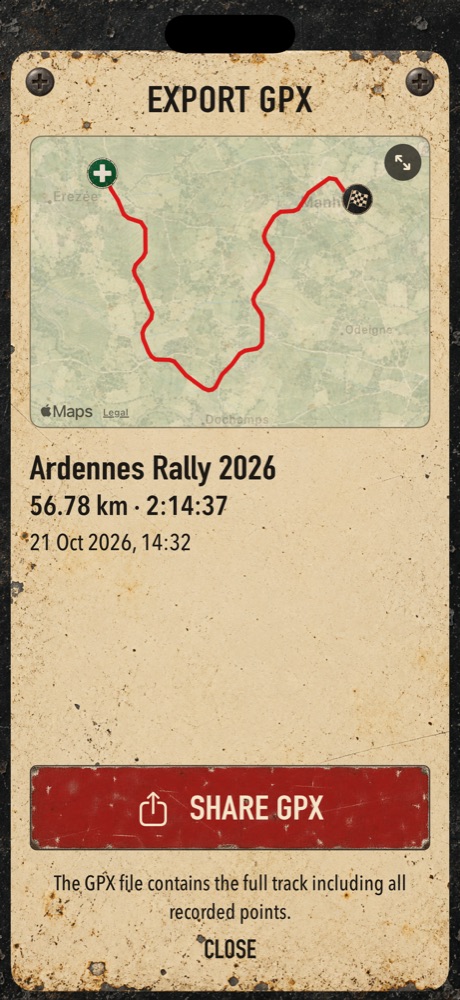
Tap EXPORT GPX to share the full track with your navigator, a club or route software.

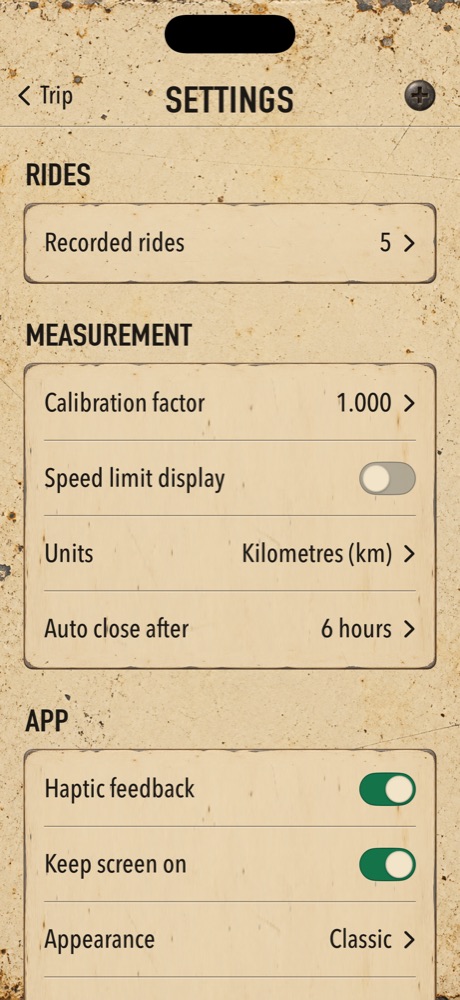
Settings screen with calibration, units and options
09

Calibrate to your car

GPS usually measures 1 to 3 % differently from your car's odometer. To make them agree:

  • Drive a stretch whose real length you know.
  • Open Settings › Calibration factor, enter the actual distance and press CALCULATE AND SAVE.

In Settings you also choose kilometres or miles, the speed limit sign, haptic feedback and when an open ride closes by itself.

TipThe built-in Help (Settings › Help) explains every screen again, offline.

Ready for the road?